In-Depth Product Analysis for Informed Consumer Choices

Best 5 WiFi Routers of 2026
Steady WiFi in Every Room
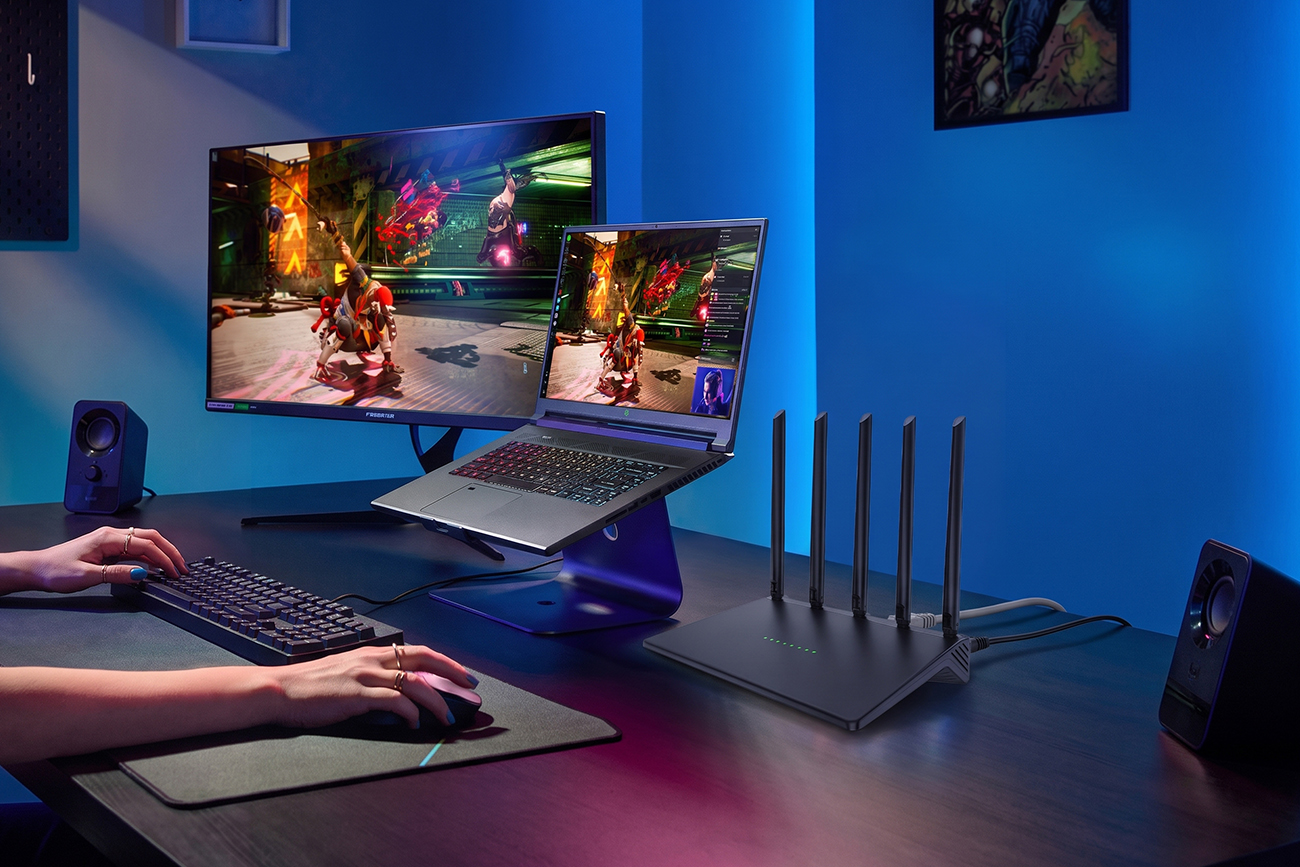
Picture this: it’s 7:30 on a weeknight, the TV is running 4K, somebody’s on a console downstairs, and the video call in the back bedroom starts breaking up 📶. I’ve been there — walking down to the router, pulling the power for ten seconds, and standing over it hoping the meeting is still running when it comes back.
You pay for gigabit and the far bedroom gets forty Mbps. The basement camera drops offline every few days, and none of it gets fixed by a bigger number on the box. AX3000, AX6600, BE7200 are theoretical rates added up across every band at once — not what one laptop sees two rooms away, and never more than the connection coming into the house.
What decides it is where the signal reaches, what happens at 7:30 p.m., and whether the thing stays up. We tested 30 routers over four years and judged every one on the same four things: coverage at the edge of the house, how it holds up when everyone’s online, whether it needs a weekly reboot, and what you can actually plug into it.
The one that fits the most homes is the Clorant WiFi Router. Dual-band WiFi 6 with six external antennas, three Gigabit LAN ports and one-touch Mesh 📡 — built around a gigabit connection and a house full of ordinary devices, rather than around a spec sheet.
Below is what to look for, what to avoid, and how the five compare — from WiFi 7 routers with 10-gig ports to an app-first mesh node with two Ethernet jacks. Two of the five are built for connections faster than most homes buy; one assumes you’d rather never open a settings page.

By Grant Mercer
Grant Mercer is a seasoned Home Networking Analyst with 4+ years of experience testing over 30 WiFi routers and mesh systems. Specializes in performance evaluation of everyday home networks running on gigabit and slower connections.
Our Evaluation Standards
Coverage at the Edge of the House
Evaluated the far bedroom, the basement and the back patio rather than the room the router sits in, since that's where anyone actually notices a weak network
Holding Up When Everyone's Online
Tested the 7:30 p.m. problem — a 4K stream, a console game and a video call at the same time — because peak concurrency is what most households are really buying for
Staying Up Without a Weekly Reboot
Assessed behavior over days rather than minutes, since connected-but-no-internet is the complaint that sends most people shopping in the first place
Wired Ports and Room to Grow
Measured what you can genuinely plug in, and how much work it takes to add a second node once a dead zone turns up

from Clorant
Overall Grade
A+
Rating
9.6/10
OVERALL ANALYSIS
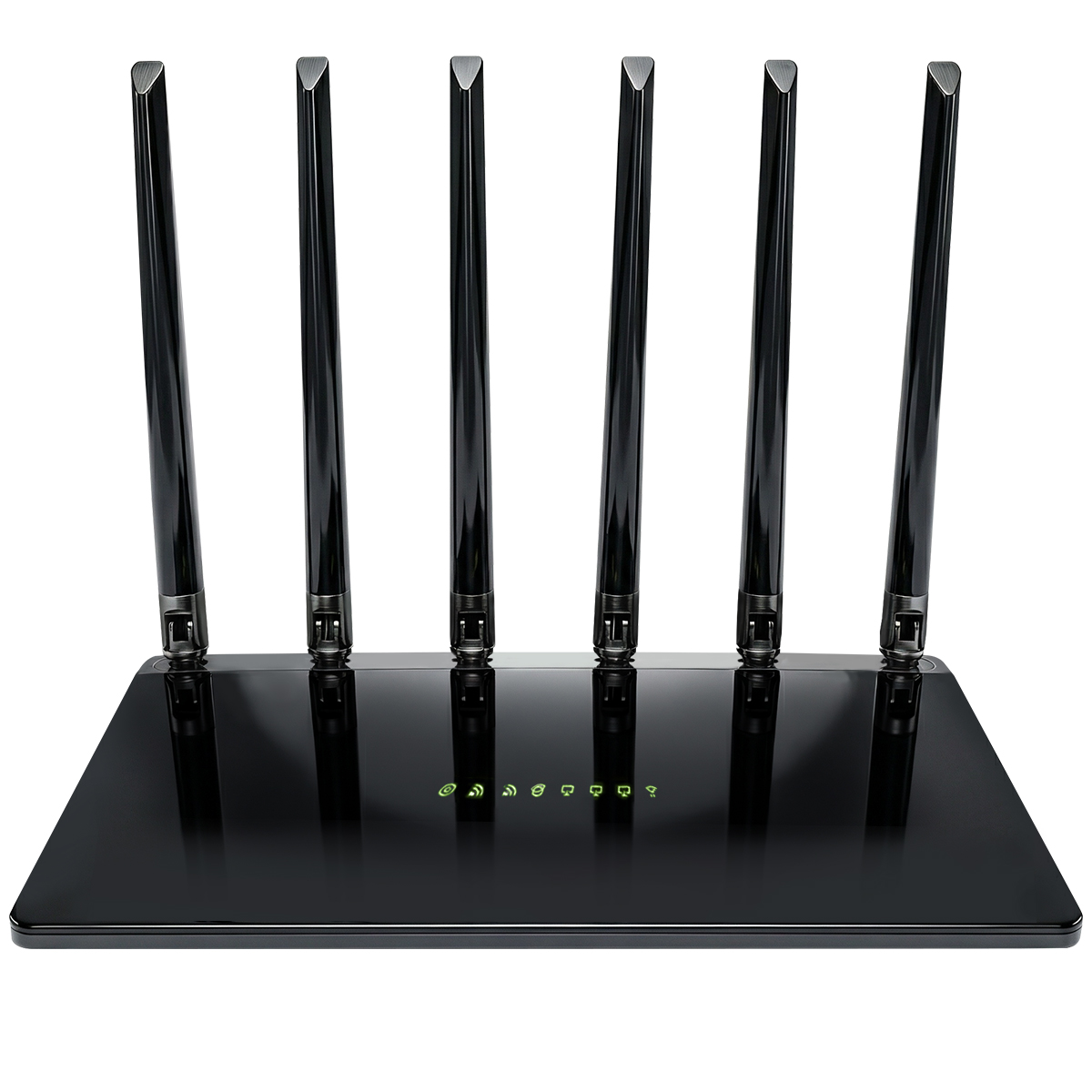
The Clorant WiFi Router is built around the connection most homes actually have. Dual-band WiFi 6 at 2400 Mbps on 5 GHz and 574 Mbps on 2.4 GHz covers a gigabit plan with room to spare 📡, without charging you for a 6 GHz band half the devices in the house can’t use yet.
Six antennas do the reaching, not a second box. Six 5dBi external omnidirectional antennas push WiFi 6 toward the far bedroom, the basement and the patio from one central unit, so the whole house comes off one router and adding a node is something you do later if a dead zone turns up.
The evening rush is the part it’s designed for. OFDMA and MU-MIMO let it serve several devices in the same airtime slot instead of one at a time, and a dedicated MT7976CN radio chip works alongside the MT7981B processor so the wireless side isn’t sharing silicon with routing. It’s rated for up to 128 connected devices — phones, laptops, a TV, a console, a doorbell and a shelf of smart plugs at once.
Three Gigabit LAN ports, not one. A TV, a console and a desktop all go wired, which takes them off the airwaves and leaves the WiFi to phones and tablets. Encryption and a built-in firewall cover the security side with no paid tier, and a cooling design is aimed at the hours-long stretches under full load where routers tend to get flaky.
Whether you’re covering a two-story house on a gigabit plan or wiring up a home office, this router’s no-6GHz simplicity means nothing to configure that you didn’t ask for — no VLANs, no channel widths, no subscription. One-touch Mesh adds a node later, one-touch firmware updates keep it current, and 802.11ax back through 802.11b means the old 2.4 GHz doorbell still joins without a fight.
Pros
Delivers your full gigabit plan speed, not a fraction of it
Reaches the far bedroom, the basement and the back patio
Plug in the TV, console and desktop for wired speed
Video calls stay clear while a 4K stream runs downstairs
Rated for up to 128 connected devices
No slowdown when wired and wireless traffic run together
Enough memory to keep running smoothly for weeks
Cooling design for long stretches at full load
Encryption and a built-in firewall, with no paid tier
One-touch Mesh and one-touch firmware updates
Cons
Occasionally out of stock due to strong demand
Delivery takes 1-2 days longer than major brands.
THE RESULT
The Clorant WiFi Router stands out as 2026’s most sensible pick for a gigabit household, pairing six antennas and three Gigabit LAN ports with multi-device WiFi 6 and one-touch Mesh. Its plug-in-and-forget setup 🏆 and lack of paid tiers justify a quick decision before peak-season stock runs out.

from ASUS
Overall Grade
B+
Rating
9.3/10
OVERALL ANALYSIS
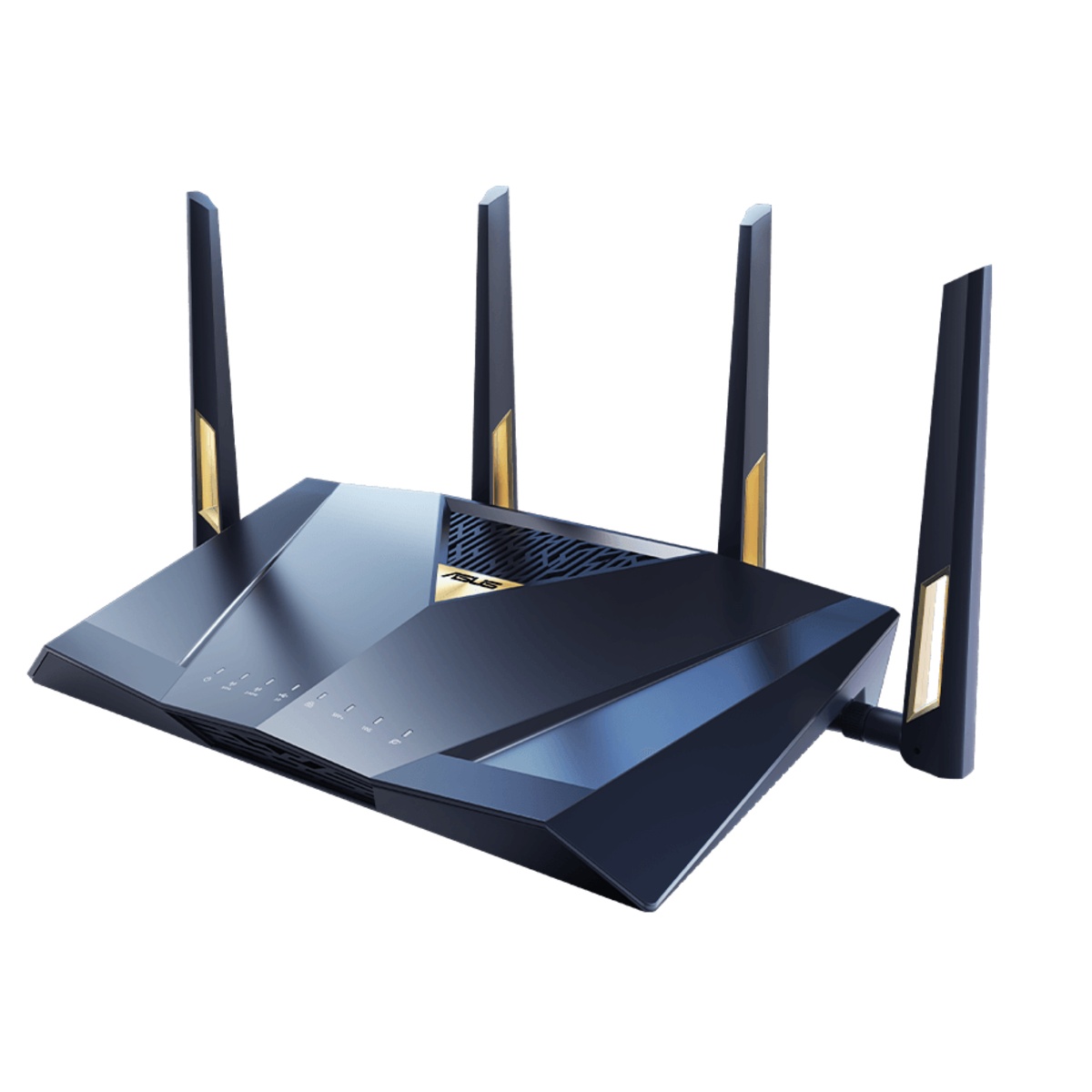
The ASUS WiFi Router is for a house with wired ambitions. A 10G WAN/LAN port, a 10G SFP+, four 2.5G and four Gigabit jacks 🔌 is the kind of layout you normally only see on business gear, and WAN and LAN aggregation let you bond two of them together.
The wireless side is a generation ahead. WiFi 7 / BE7200 delivers 1376 Mbps on 2.4 GHz and 5764 Mbps on 5 GHz, with MLO and 4K-QAM for clients that can use them.
The hardware behind it is serious. A 2.6 GHz quad-core CPU with 2 GB of RAM runs AiMesh, AiProtection Pro, Guest Network Pro and VPN — and the core security features don’t sit behind a subscription.
It’s more router than most homes need. There’s no 6 GHz band despite the WiFi 7 badge, so the cleanest spectrum isn’t part of the deal, and MLO’s benefit depends on your clients and falls off with distance. Through 2026, owner threads have clustered around firmware versions that drop LAN and WiFi together or knock smart-home devices offline until you roll back. At roughly 300 × 188 mm with four antennas and that port bank, it’s a lot of hardware for a gigabit household. It’s a strong buy for someone with 2.5G or 10G wired gear who enjoys tuning a network, as long as you’ll keep an eye on firmware releases.
Pros
WiFi 7 BE7200 with 5764 Mbps on 5 GHz
10G WAN/LAN plus 10G SFP+ and four 2.5G ports
2.6 GHz quad-core CPU with 2 GB of RAM
MLO and 4K-QAM for compatible clients
AiMesh, VPN and Guest Network Pro
AiProtection Pro with no subscription for core features
WAN and LAN aggregation support
Cons
No 6 GHz band despite the WiFi 7 badge
Firmware versions have dropped LAN and WiFi together
Far more configuration than a gigabit household needs

from Synology
Overall Grade
B+
Rating
9.0/10
OVERALL ANALYSIS
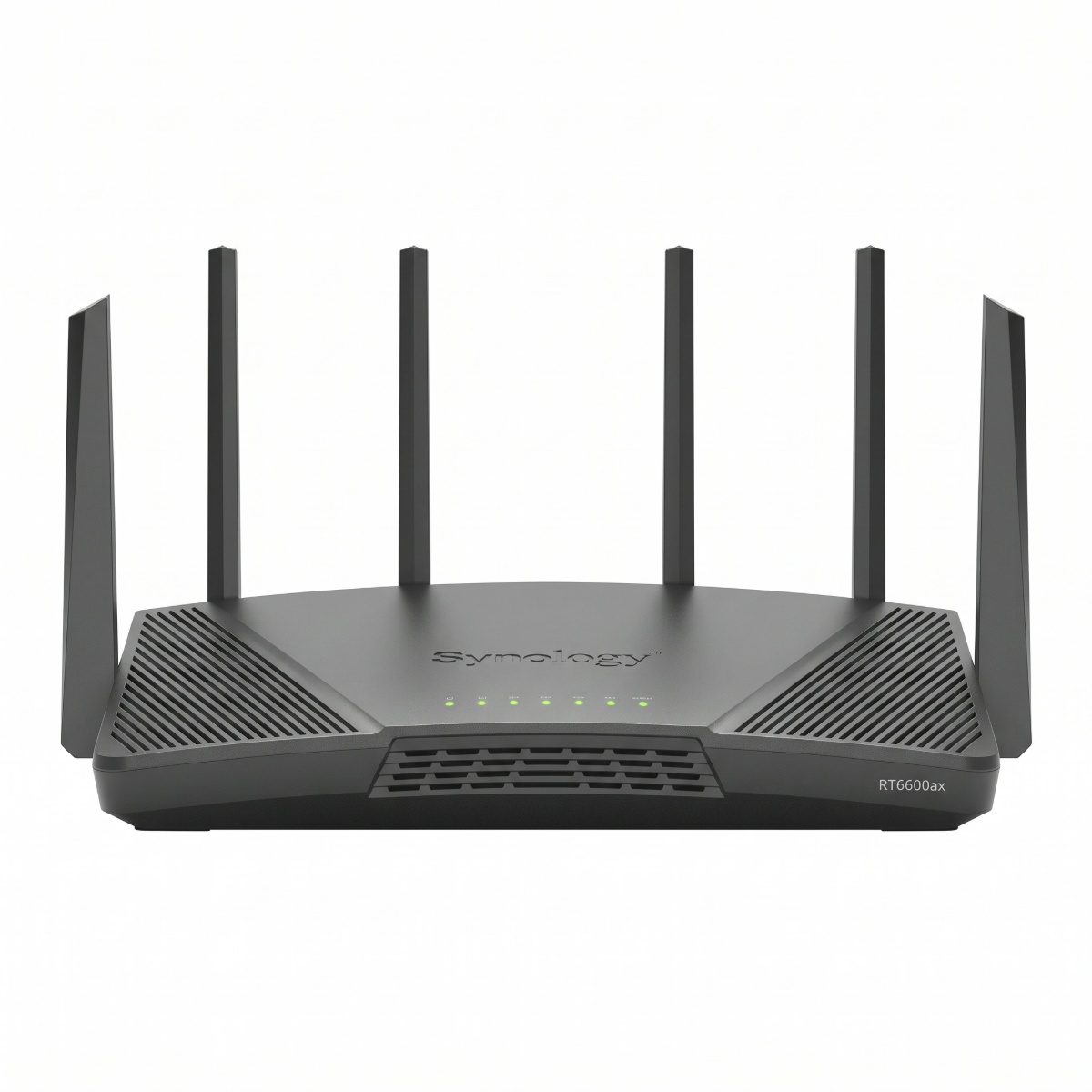
The Synology WiFi Router treats a house like a small office. SRM gives you up to five networks and fifteen SSIDs, VLANs, Safe Access parental controls and VPN tools 🛠️ — the kind of segmentation that keeps IoT gear off the same network as your laptop.
The radio side backs that up. Tri-band WiFi 6 / AX6600 runs 4800 Mbps on the primary 5 GHz band at 4×4 and 160 MHz, with 5.9 GHz (UNII-4) support, six high-gain antennas, a 1.8 GHz quad-core CPU with 1 GB of RAM, a 2.5GbE configurable port, three Gigabit LAN and USB 3.2. It’s rated for up to 200 devices.
The complexity has a cost. Mesh and 5 GHz dropouts show up repeatedly in owner threads for particular configurations — not universal, but frequent enough to plan around — and coverage reports split sharply depending on house size and wall construction. The single 2.5GbE port is WAN or LAN, not both, so a multi-gig connection and a NAS can’t share it. Threat Prevention adds load that some setups don’t handle well, and there’s no 6 GHz or WiFi 7 here at all. It’s a good fit for someone who wants VLANs and real network management at home, as long as you’ll maintain it.
Pros
SRM with up to five networks and fifteen SSIDs
VLANs, Safe Access parental controls and VPN tools
Tri-band AX6600 with 4800 Mbps on the primary 5 GHz band
5.9 GHz (UNII-4) support and 4×4 at 160 MHz
Six high-gain antennas on a 1.8 GHz quad-core CPU
2.5GbE configurable port, three Gigabit LAN and USB 3.2
Cons
Mesh and 5 GHz dropouts recur in particular configurations
Coverage reports split sharply by house size and construction
The single 2.5GbE port is WAN or LAN, not both
No 6 GHz and no WiFi 7

from eero
Overall Grade
C+
Rating
8.6/10
OVERALL ANALYSIS
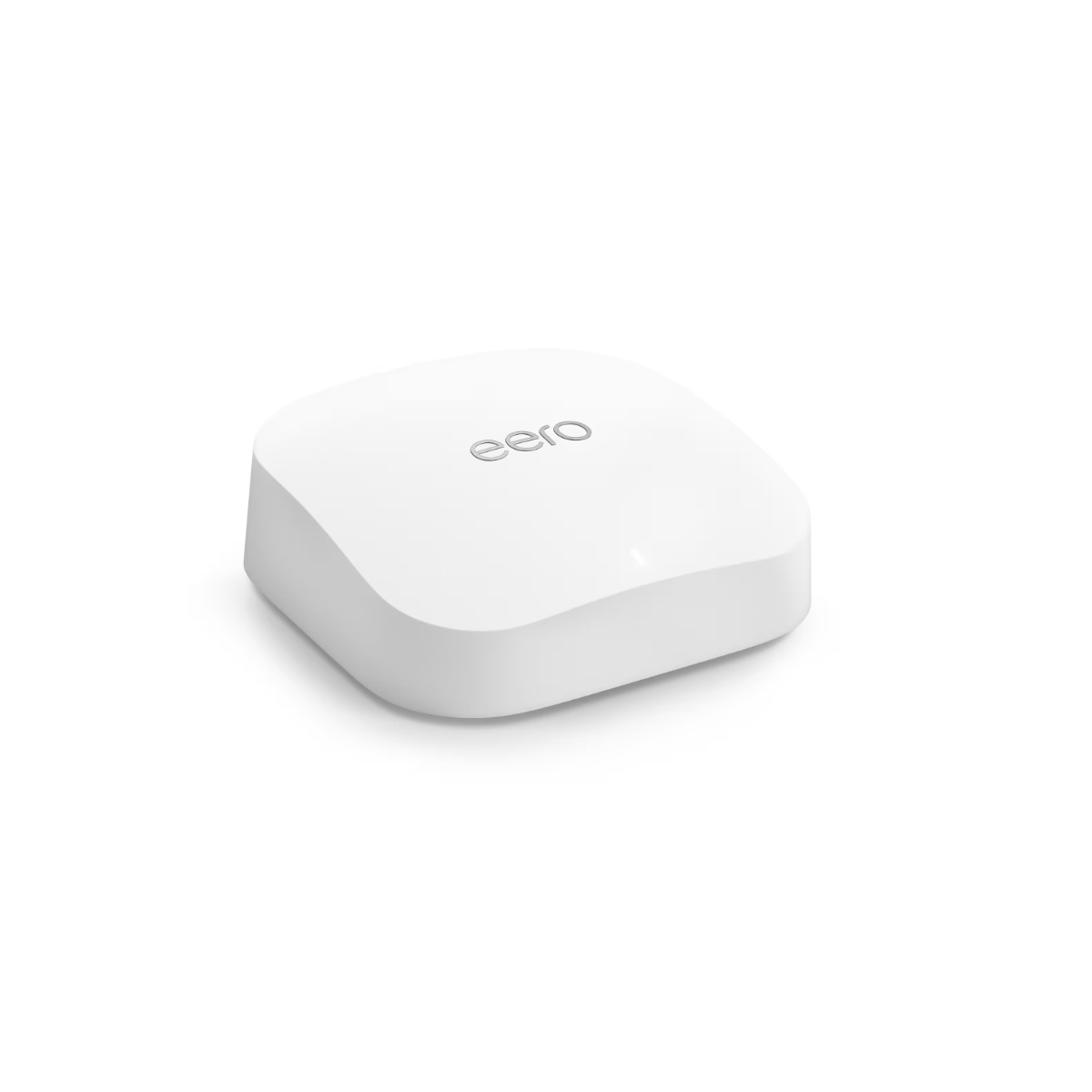
The eero Mesh WiFi Router is the one you set up from a phone in ten minutes. App-first setup with automatic band steering and roaming 📱 means no web admin page, no channel decisions and nothing manual to get wrong.
It has the band its price rivals mostly don’t. Tri-band WiFi 6E across 2.4, 5 and 6 GHz, with both 5 and 6 GHz at 160 MHz, on a 1 GHz dual-core CPU with 1 GB of RAM.
It talks to your smart home directly. Zigbee and Thread radios are built in, and a 2.5GbE port alongside a Gigabit port gives a gigabit-plus plan somewhere to land. One unit is rated for about 2,000 sq. ft. and 100-plus devices.
Two Ethernet ports is the catch. Once one becomes the WAN, you have exactly one local wired jack — a TV, a console and a desktop means buying a switch as well. Advanced security and parental controls sit inside a subscription, connectivity is a recurring negative theme in owner feedback, and a 2026 OS update produced a run of reports about WiFi showing connected with no internet until people rolled back. Manual tuning is deliberately limited. It’s a sensible pick for households that want the simplest possible setup, as long as you don’t have much to plug in.
Pros
App-first setup with automatic band steering and roaming
Tri-band WiFi 6E with both 5 and 6 GHz at 160 MHz
2.5GbE port alongside a Gigabit port
Zigbee and Thread radios built in
Rated for about 2,000 sq. ft. and 100-plus devices
Cons
Two Ethernet ports, so one local wired jack after the WAN
Advanced security and parental controls need a subscription
Connectivity is a recurring negative theme in owner feedback
A 2026 OS update caused connected-but-no-internet reports
Manual tuning is deliberately limited

Overall Grade
C
Rating
8.1/10
OVERALL ANALYSIS
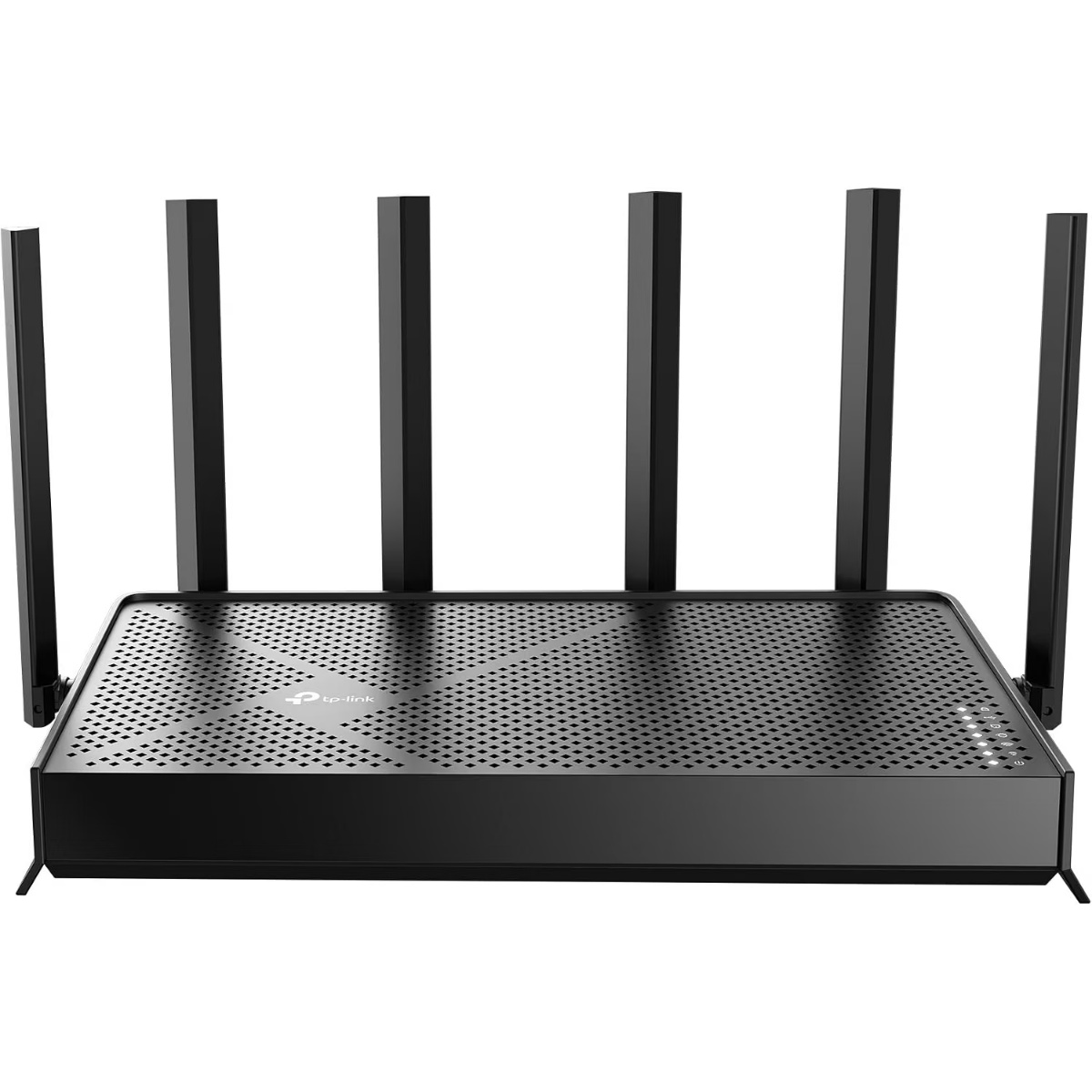
The TP-Link WiFi Router is built for the connection you probably don’t have yet. A 10 Gbps WAN/LAN port, a 2.5 Gbps WAN/LAN and three 2.5 Gbps LAN ports 🔌 exist for multi-gig fiber and wired NAS traffic, not for a gigabit plan.
The wireless side matches the wiring. Tri-band WiFi 7 / BE9700 across 2.4, 5 and 6 GHz with 320 MHz channels, 4K-QAM and MLO, running on a quad-core CPU behind six external antennas with beamforming.
It’s quick to get going for what it is. The Tether app has it running in minutes, EasyMesh adds nodes later, and VPN client and server support with IoT network isolation covers security without opening a web console.
The question is what any of that does on a gigabit plan. WiFi 7’s gains — 320 MHz channels, 4K-QAM, MLO — need WiFi 7 clients, and most houses don’t own one yet. 6 GHz still doesn’t get through walls, so devices fall back to 5 GHz a room away, and multi-gig ports do nothing for a connection that tops out at 1 Gbps. It’s rated for 2,600 sq. ft. and 120 devices, HomeShield’s advanced tier is a paid subscription while the basics stay free, and at 11.29 × 6.02 in it takes real shelf space. It’s a reasonable pick for a household on multi-gig fiber with WiFi 7 devices arriving, as long as you’re buying for the next three years rather than this one.
Pros
Tri-band WiFi 7 BE9700 across 2.4, 5 and 6 GHz
10 Gbps WAN/LAN plus 2.5 Gbps WAN/LAN and three 2.5 Gbps LAN
320 MHz channels, 4K-QAM and MLO on a quad-core CPU
Six external antennas with beamforming, plus EasyMesh
Cons
WiFi 7 gains need WiFi 7 clients most homes don’t own yet
6 GHz still doesn’t get through walls
Multi-gig ports do nothing on a gigabit plan
HomeShield’s advanced tier is a paid subscription
At 11.29 × 6.02 in it takes real shelf space
❓What Is a WiFi Router?
A WiFi router takes the internet connection coming into your house and shares it out — wirelessly to phones, laptops and smart-home gear, and over Ethernet to anything you plug in. The distinction that trips people up is that a router is not a modem. Most cable and fiber homes still need the provider’s modem, ONT or gateway to bring the signal in; the router sits behind it and handles the network inside the house. Buying one doesn’t replace what your provider installed at the wall.
The number on the box is the most misread spec in the category. AX3000, AX6600 and BE7200 are marketing classes built by adding up the theoretical peak rates of every band at once. No single device ever sees that total — a laptop connects to one band, with its own antenna count and channel width, and the result is a fraction of the headline. Your internet plan caps it further: a gigabit connection can’t deliver more than a gigabit no matter what the router is rated for.
Bands behave differently, and newer doesn’t mean farther. 2.4 GHz is slow but travels well and reaches the basement and the backyard, which is why most smart-home devices sit there. 5 GHz is the everyday workhorse for streaming and calls. 6 GHz carries the most data over short distances in a clean, uncrowded band — and is the worst of the three at getting through walls. Devices routinely fall back to 5 GHz once you leave the room, and only WiFi 6E and 7 clients can use 6 GHz at all, so a house full of older phones and TVs gains nothing from it.
Three things decide how a router behaves after the first week. Placement matters more than antenna count — central, elevated and away from metal cabinets, TVs and microwaves beats an extra pair of antennas in a corner. Mesh isn’t universal: EasyMesh, AiMesh and each brand’s own system have their own compatibility rules, so confirm which nodes actually pair before planning an expansion. And coverage figures in square feet come from each maker’s own test conditions, so two routers both claiming 2,000 sq. ft. can behave nothing alike in a house with plaster walls or three floors.
🎯 Key Features & Advantages: WiFi Routers
The Far Bedroom Stops Being a Dead Zone: Streaming and calls work at the end of the house instead of dropping to one bar and buffering.
Evenings Stop Being a Fight: A 4K stream, a console game and a video call can run at once without one of them stalling the others.
You Stop Rebooting the Router: Connected-but-no-internet stops being a weekly ritual with the power cord.
Cameras and Doorbells Stay Online: Smart-home gear on 2.4 GHz holds its connection instead of dropping off and needing a re-pair.
Wired Devices Free Up the Air: Moving a TV, a console and a desktop to Ethernet leaves more airtime for everything still on WiFi.
Working From Home Gets Predictable: Video calls stop breaking up because someone downstairs started a download.
One Login for the Whole House: A single network name and password replaces an extender with its own SSID that nobody’s phone joins properly.
Room to Add Coverage Later: Finding a dead zone doesn’t mean replacing the router, just adding a node to the same network.
🔍 Smart Buying Guide: WiFi Routers
Match the Router to Your Plan, Not the Box: A gigabit connection can’t exceed a gigabit, so paying for multi-gig hardware only helps if your plan and devices are there too.
Count the LAN Ports You Actually Need: A TV, a console and a desktop is three, and plenty of mesh units leave you with one after the WAN.
Check Which Bands Your Devices Support: 6 GHz needs a WiFi 6E or 7 client, so a house of older phones and TVs gains nothing from a tri-band price.
Ask Which Nodes Actually Pair: Mesh systems are brand-specific, so check the compatible model list and how the backhaul works before you plan on a second unit.
Read the Subscription Structure: Some brands put parental controls and advanced security behind a paid tier, which changes the cost over three years.
Plan the Placement Before the Purchase: Central, elevated and clear of metal beats extra antennas stuffed into a media cabinet.
Check the Firmware Track Record: Routers get worse as well as better with updates, so look at how a brand handled its recent releases before you commit to living with it.
⚠️ Smart Shopper Alert: WiFi Routers
Reading AX3000 or BE7200 as Real Speed: Those are added-up theoretical band rates, and no single device ever connects at that figure.
Paying for 6 GHz With No 6E Devices: The third band only works with WiFi 6E and 7 clients, and older gear can’t touch it.
Assuming 6 GHz Means Better Range: It’s the shortest-reaching band of the three, and devices fall back to 5 GHz as soon as a wall gets in the way.
Comparing Coverage in Square Feet Across Brands: Every maker tests in its own conditions, so the same figure describes very different real-world results.
Buying a Router to Replace a Modem: Most cable and fiber homes still need the provider’s modem, ONT or gateway, and a router alone won’t connect the house.
By Grant Mercer
Grant Mercer is a seasoned Home Networking Analyst with 4+ years of experience testing over 30 WiFi routers and mesh systems. Specializes in performance evaluation of everyday home networks running on gigabit and slower connections.